
FAQ / Request
FAQ – frequently asked questions
Looking for quick answers to the most important questions about CAPTIVA devices? Then you are in the right place. Simply choose the topic your question relates to and off you go
How long is the warranty on my Captiva device?
Our products come with a two-year warranty. Once that period has expired, a repair is possible on the basis of a cost estimate.
If I have to send my device in, do I need to include the accessories that came with it?
That depends on what you need to send in for repair. With a PC you can leave out the power cable, mouse, keyboard and accessories, as they are not essential for the repair. With a notebook it is better to include the power supply, as that could be a possible source of the fault.
I need to send my machine in for repair. What do I need to bear in mind?
First of all, make sure the device is packed securely and stably — ideally in its original packaging. If you no longer have it, various parcel services sell suitable packaging. If the device arrives damaged because it was inadequately packed, costs may arise. Enclose a detailed description of the fault: the more precise it is, the faster our technicians can identify and fix the problem. Where possible, avoid password protection so that we can reproduce the fault on the existing system.
Can it happen that my operating system is deleted?
Exclusions from warranty cover
In particular, the warranty does not cover:
- Loss of software or data occurring during repair or replacement work
- Backing up data held on the device's internal or external storage media
This can also be read up in the warranty card that we enclose with the devices.
My device is with you for repair. Roughly how long will that take?
Depending on workload, spare parts in stock, fault diagnosis and repair assembly, the repair process can take up to 15 working days. Shipping to and from us is not included in that.
I would like to upgrade my PC but do not trust myself to do the work. Can you help? Does that extend the warranty?
We would be glad to help you upgrade your device professionally and effectively. Here you will find more information.
If you take up the upgrade service within the original 24 months, your warranty is extended by a further 12 months, to 36 months in total.
You are of course also welcome to send the PC in for a professional clean. You will find more information here.
A dirty device is not, however, a case for the statutory warranty.
May I open my PC to add hardware or remove dust without losing my warranty?
In principle you may of course open and upgrade your PC without automatically losing your warranty. Please proceed carefully and thoroughly, though: mechanical damage to the hardware, or defects caused by the work itself, cannot be covered by the warranty.
My PC no longer works properly. I would like to send it in, but I have already removed and upgraded hardware. Does that cause problems, or is there anything I need to bear in mind?
Please note in your fault description which hardware you have replaced. We do not repair third-party hardware unless you would like it exchanged; in that case we would send you a cost estimate. If the original hardware was damaged when the hardware was changed, repairing or replacing the damaged parts becomes chargeable. Repair of the original hardware falls, with the exception noted above, under the statutory warranty or, where applicable, the warranty
My operating system shows an error and no longer starts. Is that a warranty case?
Pure software problems are not covered by the statutory warranty and would be chargeable if the device were sent in. If you need help reinstalling your operating system, please send us a service request and we will be glad to help you as quickly as we can.
My PC is currently with you for repair. Can I find out the repair status by telephone?
As a rule we do not give warranty status information over the telephone. The most reliable way to find out the repair status is a service request on our website. Send us here a service request asking for the current repair status. Always give the serial number of your PC when you do. We will then let you know promptly and reliably.
I have damage in transit. What can I do?
Reliability and service matter to us. That is why no product leaves our logistics centre without a thorough check.
If something has gone wrong all the same and the goods were damaged on their way to you, we will of course see to it right away.
We have summarised everything you need to know in the event of damage:
If these steps are not followed, your claim may lapse.
Leave the goods and the packaging unchanged.
Do not use the damaged goods.
Take photographs if at all possible.
Report the damage as described below.
There is a difference between visible damage (packaging damaged) and concealed damage (packaging intact / contents damaged). Open the consignment immediately and make sure there is no concealed transit damage.
1. Visible damage:
When you accept the goods, the damage — or any shortfall in the number of boxes — must be noted on the consignment note / delivery docket, or acceptance of the consignment must be refused.
2. Concealed damage:
Damage that only comes to light when the goods are unpacked must be reported within 7 calendar days. Leave the goods and the packaging unchanged for inspection, or keep them in the original box ready for the parcel service to collect.
If the goods are returned without prior inspection by the parcel service or carrier, the claim against them lapses.
Please enclose our service return form with the goods. Tick "Other" on it and enter "Damage in transit" as the fault description.
If you have any problems or anything is unclear, please contact our service hotline.
I have a problem with my Captiva PC. Who should I turn to?
If you ever have a problem with a CAPTIVA® product, turn to our service team with confidence. Our staff will handle the whole process reliably and quickly.
To do so, please fill in the service return form, which you can download here here.
If your device needs a chargeable repair, we will send you a cost estimate. Once you have signed it and returned it to us, we will start the repair straight away.
My device is outside the warranty period and has a technical problem. What can I do?
If your device is no longer within the warranty period, or the warranty has lapsed because of an external influence (liquid damage, mechanical damage), you are of course welcome to send the device to Captiva / Nexoc so that a cost estimate can be drawn up. Please send us an e-mail with a precise description of the problem. You will then receive further instructions for sending your device in.
My notebook has a pixel defect. What are the pixel guidelines for this?
ISO standard 9241-307 defines quality classes for this and thereby creates transparency regarding warranty claims by end customers, retailers and wholesalers against the manufacturers. By committing to an ISO defect class, monitor manufacturers undertake to meet the corresponding standard in series production.
The pixel defect classes are based — as explained in the table below — on the number of pixel defects and on the specific defect type. The pixel defect count is defined per 1 million pixels in each case.
The following three defect types are distinguished:
- Defect type 1: permanently lit pixel
- Defect type 2: permanently black pixel
- Defect type 3: faulty subpixel, either permanently lit (red, green, blue) or permanently black
The ISO defect classes are defined as follows:
| Defect class | Max. number of type 1 | Max. number of type 2 | Max. number of type 3 |
|---|---|---|---|
| I | 1 | 1 | 2-5 |
| II | 2 | 2 | 5-10 |
| III | 5 | 15 | 50 |
| IV | 50 | 150 | 500 |
All notebooks sold by Captiva and Nexoc GmbH conform to class II unless stated otherwise.
My screen shows pixel defects, graphics errors or colour errors. What does that mean and what can I do?
That could point to a faulty graphics card. Open Device Manager and check whether the graphics card is marked there with a yellow exclamation mark. If it is, right-click the graphics card in Device Manager and check whether „Error 43“ is shown. If so, please create a service request.
My PC starts up but shows no picture on my monitor. What can I do?
Please check first whether you bought a machine with a separate graphics card fitted. If so, please connect the monitor to the graphics card and not to the motherboard. The graphics card is also marked with a sticker.
or
The memory modules may have worked loose in transit. If you feel confident doing so, switch the machine off, open the side panel, take the memory modules out and refit them.
Less hard disk space is shown than I bought. Have I been given too small a hard disk?
All manufacturers calculate hard disk sizes so that round figures can be quoted. To do this, capacities are calculated on the decimal system, so 1 GB = 1000 MB. Storage sizes are actually based on the binary system, under which 1 GB = 1024 MB. A hard disk that the manufacturer states as 500 GB therefore only ever has an actual raw capacity of 465.5 GB.
You can convert the stated storage sizes of hard disks to the actual capacity by multiplying the stated size by 0.9313. This rule applies to all manufacturers and to all retailers.
How can I find out which motherboard is fitted in my PC?
You can search for your device on our website and find the hardware there under the specifications. You can also press the „Del“ or „Esc“ key straight after switching the PC on, which takes you into the BIOS. On most common models the product name of the motherboard is shown there too. If you cannot find it either way, you are welcome to send us a service request.
I bought a PC with two drives, but This PC only shows one drive. What can I do here?
The missing drive may just need to be initialised and formatted. Right-click the Windows symbol at the bottom left. Now choose „Disk Management“. All the drives in the device are then listed. If a drive is shown with a black bar it is not formatted, which can sometimes happen when Windows is first set up. Right-click the drive and carry out the formatting.
If formatting did not help, a SATA cable (power or data) may have worked loose in transit. Switch the machine off, open the side panel and then check that all SATA cables are seated firmly on the drives and the motherboard.
I cannot connect my new PC to my existing Wi-Fi network. Why?
Please check in your order details whether you bought a device with an integrated Wi-Fi module. If not, you will need additional hardware to set up a Wi-Fi connection, for example a standard Wi-Fi stick.
My machine is plugged in correctly but does not switch on, or gets no power. How can I fix that?
First check that the power supply switch is set to „I“ and not to „O“.
A cable may have worked loose in transit. Please open the side panel once and check that the following cables are connected and seated properly:
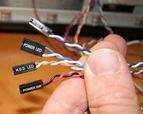
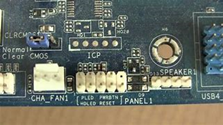
If these cables are loose or have come away, simply plug them back in; the order is normally marked on the motherboard. The PC should then switch on.
Where do I find the Captiva PC manual?
You can download the manual here here.
These operating instructions form part of every Captiva desktop PC and contain all the safety information and instructions you need in order to use your Captiva desktop PC.
Please familiarise yourself with all the relevant information before using your product. Use the product only in the manner described and for the stated purposes. If you pass the product on, be sure to hand over all instructions and other relevant documents with it. If you still have specific questions after reading these instructions, please contact the manufacturer.
My notebook camera is not recognised. What can I do?
Pressing FN + F10 switches the webcam on and off.
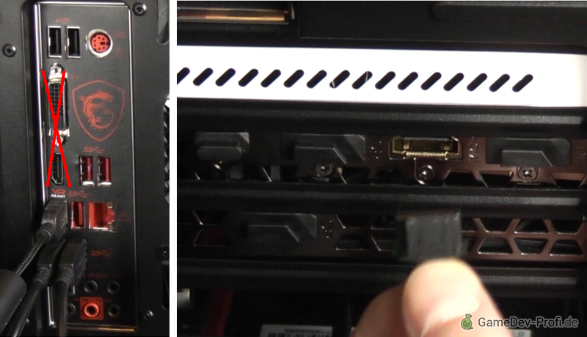
Can I connect one or more monitors to the motherboard even though I have a graphics card installed in my PC?
Once a graphics card has been installed, the monitor connections on the motherboard are automatically disabled.
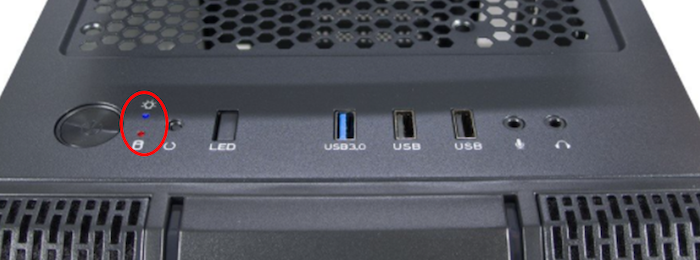
What do the light signals on my front panel mean?
There are two signals here, a red one and a blue one. The red signal means your hard disk is active, and the blue signal means your PC is active. The small button next to them serves as the RESET function for your PC.
Why does my PC have no Wi-Fi?
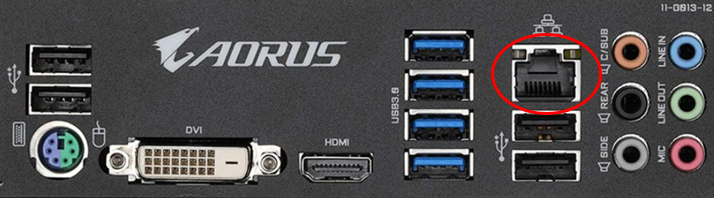
Your motherboard does not support Wi-Fi; for that you will need to buy a Wi-Fi adapter from the shop of your choice. Alternatively you can connect the PC to your router/network/internet via the LAN port.
You can see the port in question in the illustration:
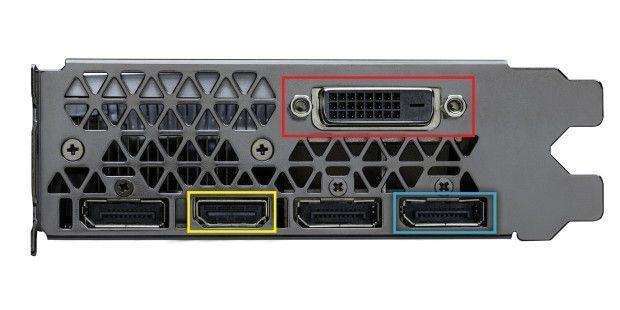
I would like to use more than two monitors. What do I need to bear in mind?
How many monitors you can connect to a laptop depends on the connection and the resolution of the displays. Notebooks with the NVIDIA Optimus power-saving technology are generally more limited, but even there individual display outputs may be connected directly to the dedicated graphics card. How many displays your notebook can drive natively is stated in the data sheet or user manual for that notebook.
Why does my hard disk show less storage than expected?
One reason is that hard disk size is calculated in different ways. The manufacturer states the hard disk size in 1012 bytes. Windows states this capacity with the binary meaning of 240 bytes. So the 1024 gigabytes stated by the manufacturer become 931 gigabytes under Windows.
Why does the fan sometimes spin up even though my notebook is idle?
This can be because Windows automatically carries out certain maintenance tasks when there has been no user activity for a period of time.
To prevent this, please disable the task „Idle Maintenance“ in Windows Task Scheduler: Start > Task Scheduler > Microsoft > Windows > TaskScheduler > right-click on „Idle Maintenance“
If you have installed third-party system software, please check its settings too. Security and cleanup software in particular often ships with „Idle Maintenance“ options enabled, and these can also be disabled.
Other causes of fans spinning up can be:
- High ambient temperature
- A dusty or blocked cooling system
- Other background activity
- Programming errors / memory leaks
- Faulty drivers
How do I look after my battery so that it lasts longer?
The battery is one of a notebook's wearing parts and steadily loses capacity over the months of use. You can put off buying a new one for a while, though, by treating it well and bearing a few things in mind.
The following tips are worth taking to heart:
- Remove the battery when running on mains power
If your notebook has a removable battery and you use it at home plugged into the mains, you should take the battery out. If it stays in the machine it is charged continuously, which reduces its service life very quickly. - Storing it correctly
Before you take the battery out of the notebook and store it, it is a good idea to charge it to about half. You should also top the battery up regularly; it is advisable to put it back on the mains after three months. Keep it cool while stored, as heat shortens a battery's life rapidly. You can keep it in a cool cellar or even in the fridge. But take care: sub-zero temperatures and moisture will harm it. - Charging it correctly
Deep discharge is particularly harmful to the battery. The advice that a battery must always be fully discharged and recharged in order to reach its full capacity is out of date, however. That is only necessary with older models using Ni-Cd technology. - Reducing consumption
Switching on your notebook's Windows power-saving mode, dimming the display a little and turning off devices you do not need — Wi-Fi or Bluetooth, for instance — considerably reduces the number of charging cycles and with it the wear on the battery.
My external screen shows stripes. What can cause that?
If stripes appear on your external monitor, there can be various causes. To rule out possible faults, connect a different monitor to the laptop. Also try other monitor ports to rule out a defective connection. If stripes are still visible, the cause may be the motherboard's graphics unit. As that is soldered to the motherboard in most cases, the whole board has to be replaced.
Why do I get no picture over the Thunderbolt port or USB-C?
By default our devices are configured so that picture output to external monitors works over Mini DisplayPort (mDP). To get picture output over your laptop's Thunderbolt port, the following settings have to be made in the BIOS:
- in the “Advanced tab“ > “Advanced Chipset Control” under “DDI Control” switch from „DDI to mDP“ to „DDI to TBT“.
- "Advanced tab“ under „Intel Thunderbolt“ set „Intel Thunderbolt Technology“ to „Enabled“.
- „Security Level“ must be set to „Unique ID“.
I am having problems with USB drives — what can cause that?
Connection problems with USB hard drives are often the result of an inadequate power supply. We therefore generally recommend using external hard drives with their own power supply unit.
Other causes of problems with USB drives can be:
- Computer viruses or malware
- Antivirus software or other security programs set too aggressively
- Using USB 2.0 cables with USB 3.0 hardware
- Poor quality USB cables
The upgrade to Windows 11 cannot be carried out because of compatibility problems. Why is that?
Please check whether your CPU is on Microsoft's compatibility list:
Intel processors supported by Windows 11
AMD processors supported by Windows 11
You would also need to check in the BIOS whether TPM 2.0 is enabled on your motherboard.
Where can I request my game coupon?
Here you can request your game coupon.
After switching on my newly bought PC, Windows does not boot. All that appears is the message „Reboot and Select proper Boot device“
Please check in your order details whether you bought a device without a pre-installed operating system. If that is the case, you will need to install an operating system before you can work with the device properly.
The frame rate is permanently low or fluctuates a lot. Is there a hardware problem?
Not necessarily. This is often a conflict between a driver version and a game, or a faulty game update or bug. So always keep your graphics drivers up to date, and check the relevant forums to see whether your problem is known in that game's community. There may already be a hotfix, or an update may be on the way.
The graphics on my device are very poor and I cannot start any games or graphics applications. What could the problem be?
I cannot set the keyboard colour on my gaming notebook. How can this be solved?
The Control Center responsible for this is probably not installed on your notebook. Find here your device and download the Control Center. Once it is installed you can set your keyboard colour.
My PC no longer works properly. What can I do?
Faulty software or a damaged operating system often causes a problem like this. In that case, first reset the operating system to its factory state. Always install the latest drivers for the motherboard and the graphics card as well.
DVDs came with my PC but my PC has no DVD drive. Do I need to install something, or what are these DVDs for?
If you bought a PC with an operating system, we have installed the latest hardware drivers for you. The DVDs supplied are part of your accessories, even if your PC no longer has a DVD drive.
How do I find out whether drivers are missing from my system?
The best place to see that is Device Manager in your Windows system. Entries that need your attention are shown there with a yellow exclamation mark.
There is no product key on the side panel of my Windows PC. What should I do?
In that case it is a Windows version with automatic activation.
The product key is built into your system and you are not prompted to enter it. Activation happens directly as soon as there is an internet connection
Is the PXE message an error?
The PXE message is not an error message. When starting up you have to press F2 -> under Setup Utility -> Boot -> UEFI Setting -> switch off Network Stack.
The PXE message should no longer appear once the settings have been saved.
How do I install a sound card?
Download the app from the Microsoft Store, or update the app if it is already installed.
How do I install an operating system?
You will need a bootable USB stick for this. You can buy a bootable USB stick online or from the shop of your choice, or create one yourself using the Microsoft Media Creation Tool. For that you will need a second working PC or laptop. Once you have installed the program, start it and follow its instructions.
There are two different links for Windows 10 and Windows 11 that lead to Microsoft's website:
How do I create a Windows 11 USB stick?
Please bear in mind that you need a second working Windows PC to create the stick. Note too that you will need a licence key. You can buy one, or perhaps you still have a key from an old device you no longer use? From Windows 7 onwards, that key can also be used for Windows 11.
1. Under the following link find the item "Create Windows 11 Installation Media" -> then click on "Download now"
2. Open the tool once it has downloaded. Please confirm any pop-up windows with "Yes"
3. The preparation now runs. This will take a while. In the meantime you can already plug in the USB stick. It must be at least 8 GB.
Please note that the stick should be empty. Back up any data on the stick beforehand, as it will be deleted while the image is created.
4. In the next window, please click the "Next" button. The preparation then continues.
5. In the next window, leave the tick next to "Use the recommended options for this PC" in place. It will then find the right image for you.
That only works if you create this stick on your Captiva PC.
If you want to create the stick on a different PC, you have to select as follows:
Language - English
Edition - Windows 11
Now click "Next" again.
6. In the next window, select "USB flash drive" and click "Next"
7. The window "Select a USB flash drive" is now shown. Your USB stick should now appear. Click "Next"
8. Windows 11 is now downloaded. Depending on your connection speed, this can take some time. A little patience may be needed here.
9. Finally the message "Your USB flash drive is ready" appears; now click "Next" again
10. The tool now completes the setup on its own, and you have a Windows 11 image stick.
11. Connect it to the PC on which Windows 11 is to be installed and start that PC. It will now boot from the stick automatically.
How do I create a Windows 10 USB stick?
Please bear in mind that you need a second working Windows PC to create the stick. Note too that you will need a licence key. You can buy one, or perhaps you still have a key from an old device you no longer use? From Windows 7 onwards, that key can also be used for Windows 10.
1. Go to the following link and click on "Download tool now"
2. Open the tool once it has downloaded. Please confirm any pop-up windows with "Yes"
3. The preparation now runs. This will take a while. In the meantime you can already plug in the USB stick. It must be at least 8 GB.
Please note that the stick should be empty. Back up any data on the stick beforehand, as it will be deleted while the image is created.
4. In the next window, please click the "Accept" button. The preparation then continues.
5. Once the preparation has finished, select the option "Create installation media (USB flash drive, DVD or ISO file) for another PC" and confirm by clicking "Next" again.
6. In the next window, leave the tick next to "Use the recommended options for this PC" in place. It will then find the right image for you.
That only works if you create this stick on your Captiva PC.
If you want to create the stick on a different PC, you have to select as follows:
Language - English
Edition - Windows 10
Architecture - 64-bit (x64)
Now click "Next" again.
7. In the next window, select "USB flash drive" and click "Next"
8. The window "Select a USB flash drive" is now shown. Your USB stick should now appear. Click "Next"
9. Windows 10 is now downloaded. Depending on your connection speed, this can take some time. A little patience may be needed here.
10. Finally the message "Your USB flash drive is ready" appears; now click "Next" again
11. The tool now completes the setup on its own, and you have a Windows 10 image stick.
12. Connect it to the PC on which Windows 10 is to be installed and start that PC. It will now boot from the stick automatically.
How do I install Windows from a Windows USB stick on my notebook?
For an installation, please follow these steps:
1. Switch the notebook off
2. Plug in the stick
3. Switch the notebook on and repeatedly press the F7 key at the same time
4. The boot menu now appears
5. Use the arrow keys to select the USB stick and confirm with the Enter key
6. The installation program starts
7. Click your way through all the steps
8. You can skip entering the Windows key with "I don't have a product key" and skip it
9. Now the selection "Custom" or "Upgrade"
10. Select "Custom" here
11. The disk overview appears. Click each disk shown and, for every disk, press "Delete"
12. Now select the SSD (the smaller disk) and install your Windows on it
Where is my Windows key?
The licence key for the installed Windows is embedded in the device's system firmware (BIOS). When Windows setup runs, the key is retrieved from the firmware automatically and therefore does not have to be entered. Once you have connected the installed Windows to the internet for the first time, the product key is fully activated.
Older variant: You will find your Windows product key on the back of your computer case or on the underside of your notebook. Part of the licence key is concealed by a seal marked "Microsoft". You can carefully scratch this small silver field free, much like a scratch card. Please do not press too hard while doing so. You can then enter the key, now legible, as a new key when activating Windows. You will find activation under Control Panel > System or with the key combination "Windows key" + "Pause key". Please click the button "activate with new key" there and enter the key from the sticker.
How do I go about updating the drivers on my notebook?
When updating drivers it is generally advisable to uninstall the previous driver completely first. That is not always strictly necessary, but it does no harm either — especially with large or complex driver packages.
Please do not simply delete the device in Device Manager; use the "Uninstall a program" function instead. You will find this function either through the Start menu search or quite simply in the Windows Control Panel.
When updating graphics drivers you should also bear in mind that on devices with NVIDIA Optimus, the Intel graphics driver should be updated as well. With hybrid graphics solutions such as Optimus, NVIDIA and Intel hardware work closely together. It is therefore advisable to keep to the following order:
- Download the new graphics driver packages for Intel and NVIDIA
- Uninstall the NVIDIA graphics driver + restart
- Uninstall the Intel graphics driver + restart
- Install the Intel graphics driver + restart
- Install the NVIDIA graphics driver + restart
You will find current driver packages either directly from the manufacturer or on the Captiva website, under the relevant notebook model in the tab Support.
Why do I get the error message "A required CD/DVD drive device driver is missing" when installing over USB?
This error message can occur when you install Windows 7 over USB 3.0.
The reason for the message: the Windows 7 installation medium has no suitable driver for USB 3.0. As a result, from a certain point on the setup wizard can no longer access the medium. Please connect the installation medium (external DVD drive or USB stick) to a USB 2.0 port and try again. You can recognise the USB 3.0 ports on the device by their blue inserts; the 2.0 ports are black.
If your device has no USB 2.0 port, please integrate the USB 3.0 driver for Windows 7 into your Windows 7 installation medium using this free software. You will find the drivers on the Captiva website, under the relevant device model in the tab Support.
How can I create my recovery medium?
Once your device has been set up for the first time, you can easily create your own recovery medium. This medium already contains all the drivers and all the programs and settings you have installed up to that point. With a recovery medium like this you can very easily return your device to an optimal initial state — without a laborious Windows reinstallation.
There are many ways to restore a system. The best and most comprehensive method is a complete recovery drive. Because such a recovery medium is also bootable, you can use it to restore (or reset) Windows even when your installation no longer starts properly because of a software or hardware fault.
To create such a recovery medium, please follow these step-by-step instructions.
Where can I buy new products from you?
There is now a wide range of retailers offering our high-quality Captiva devices. Here you can find out more.
How do I enable my TPM 2.0?
How do I control the fans and RGB?
Fans can be set in the BIOS and via software if they are connected directly to the motherboard. The colour can be controlled in various ways: via software, a remote control or a button on the case.
What are my options if the CPU is not capable of running Windows 11?
If that is the case, we would be glad to offer you our upgrade service. Your PC is then made fit for the future.
How often should I have my notebook cleaned? What care instructions are there?
- Cleaning
How often cleaning is needed depends greatly on how long and in what way the notebook is used. As a general rule it is advisable to keep the notebook, and the cooling system in particular, free of grease, dust and nicotine at all times. For the cooling system, a clean every 3 to 6 months is advisable. - Cleaning the outside
A damp (not wet!) cloth is usually enough to wipe the case down. The display is best wiped with a clean microfibre cloth. For stubborn marks the cloth may also be damp (not wet!). Take care: no liquid must get between the display and the display frame. Compressed air spray can be used to clean the keyboard. - Cleaning the inside
As described above, all Captiva models can be opened via an easily accessible service flap on the underside of the notebook. Carried out properly, this does not void the warranty. To clean the fans and heatsinks we recommend using a brush, tweezers, cotton buds or compressed air spray (for the fans). Please do not clean only the fan itself, but in particular also the heatsinks. You may unscrew and remove the fans in order to reach the heatsinks. Each fan housing is fixed to the notebook with 3 to 4 screws. These screws are very easy to undo, so the fans can also be taken out very easily.
Please note: If parts of the notebook are damaged during cleaning, this is not covered by our warranty conditions. Please therefore take great care with all maintenance work. If need be, ask our support team for advice by telephone, or send us your notebook for a flat-rate handling fee.
What different types of USB 3.2 and USB Type-C are there?
USB 3.1 describes a whole bundle of features that can differ in detail depending on the version. USB 3.1 „Type-C“ specifically describes the newly introduced connector shape, which can be plugged in either way up.
The three most common USB connector shapes are the following:
- Standard-A: also known as standard USB
- Micro-B: mainly used in smartphones for the charging cable
- Type-C: the new connector
What Standard-A and Micro-B have in common is that they can only be plugged in the right way round. Type-C is about as small as Micro-B, but can be plugged in either way up and so also works „upside down“.
USB 3.1 Type-C comes in the following variants:
USB-C 3.2 Gen1
- USB bandwidth: 5 Gbit/s
- Technically identical to USB 3.0 (apart from the new connector shape)
USB-C 3.2 Gen1 incl. DisplayPort
- USB bandwidth: 5 Gbit/s
- Technically identical to USB 3.0 (apart from the new connector shape)
- Supports an alternate mode with 1x DisplayPort over Type-C
USB-C 3.2 Gen2
- USB bandwidth: 10 Gbit/s
- Twice as fast as USB 3.0
USB-A 3.2 Gen2
- USB bandwidth: 10 Gbit/s
- Twice as fast as USB 3.0
- Uses the familiar standard USB socket
USB-C 3.2 Gen2 incl. DisplayPort
- USB bandwidth: 10 Gbit/s
- Twice as fast as USB 3.0
- Supports an alternate mode with 1x DisplayPort over Type-C
USB-C 3.2 Gen2 incl. DisplayPort
- USB bandwidth: 10 Gbit/s
- Twice as fast as USB 3.0
- Also offers Thunderbolt 3/4 at 40 Gbit/s – roughly equivalent to PCI Express 3.0 with 4 lanes (x4)
- Additionally supports an alternate mode with 1x DisplayPort over Type-C. When DisplayPort is used, the Thunderbolt bandwidth available at the same time is reduced to 20 Gbit/s
What is the "Flexi-Charger" feature and how do I use it?
The "FlexiCharger" feature was introduced in 2015 with the sixth generation of Core i7 processors (codename Skylake). The feature protects the battery during periods when the notebook is run continuously on mains power for a long time and the battery is rarely used. It reduces the number of charging cycles by only starting to recharge the battery once it has fallen to a certain level (80%, for instance), instead of letting the battery hover permanently between 99% and 100%.
As well as the lower limit, an upper limit can also be set. For long-term storage of batteries it is recommended that they be charged or discharged to about 50% beforehand. With FlexiCharger you can, for example, set the battery to start charging only at 40% and to stop charging at 60%. That keeps the battery perfectly balanced around the 50% mark over long periods.
The upper and lower limits of FlexiCharger can be set on all supported devices in the BIOS setup (F2) under "Advanced Chipset Control". When FlexiCharger is enabled, a warning appears that "over time the meter's reading accuracy will deteriorate". That means the battery level display may become less accurate over time. After 12 months the deviation can be as much as 20%. To recalibrate the accuracy of the battery level display, all you have to do is disable FlexiCharger and charge the battery to 100% once.
How do I remove the transport packaging?
First remove the packing foam inside the computer. Before starting the computer, take off the side panel and remove the foam inside it.
Please keep this foam. It is needed if the device has to be sent back.
Didn’t find an answer?
Send us a service request.
Describe your issue and give us your machine’s serial number — our team will get back to you promptly.